This article is for administrators.
Steps to Create an Offer Letter Template
Offer Letter Templates:
- Templates are always .docx files from Microsoft Word.
- By recognizing tokens in the templates, Recruiting can automatically generate Offer Letters for different candidates.
- Any combination of tokens is considered valid.
- Follow these steps to create a template:
- In Recruiting, click Admin and then click Approvals.
- On the left in Offer Letters, click Offer Letter Templates.

- Start with the Sample Offer Letter Template or use an existing Offer Letter from your company.
- Using Microsoft Word, assemble the desired template with tokens and then click Upload New Template.
- Enter a valid Name and Description for each template.
Note: Recruiting alerts you if the system detects errors with the template or the tokens.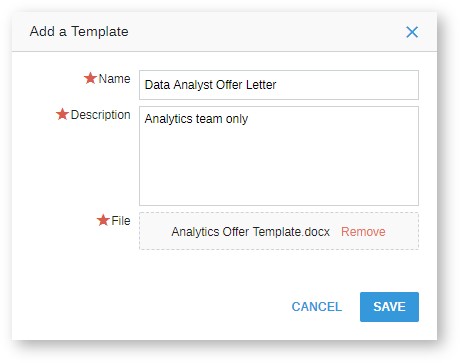
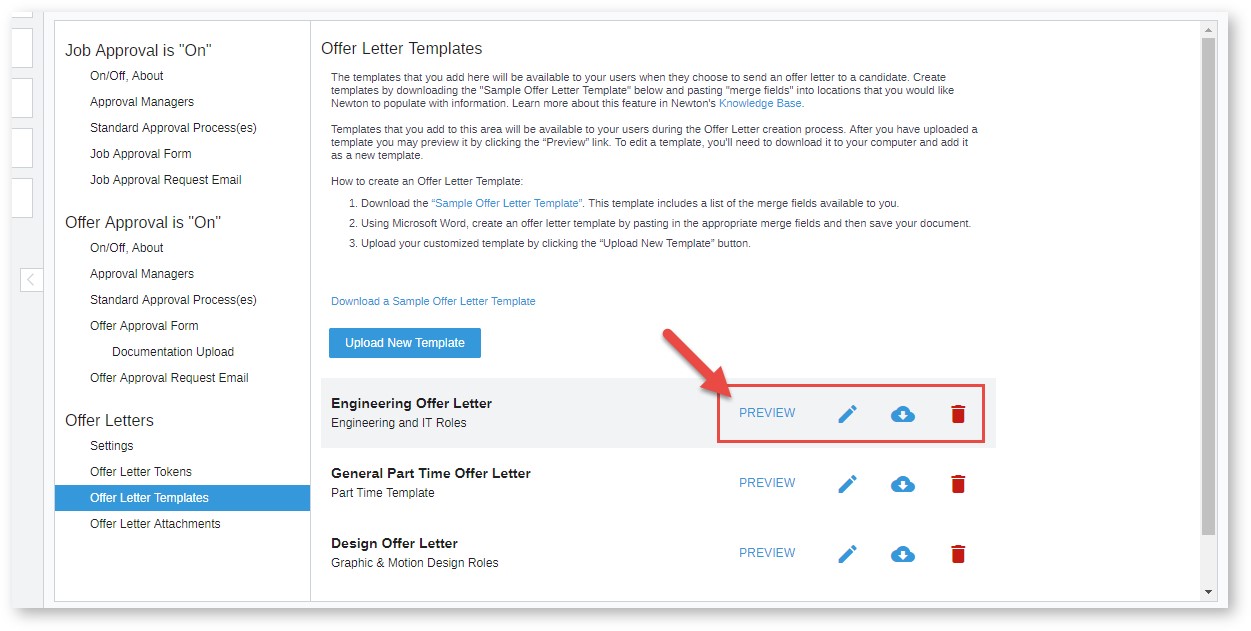
- To Preview, Edit, Download, or Delete a template, click the appropriate buttons.
Offer Letter Tokens:
- Offer Letters contain tokens to automate candidate or job-specific customization. Recruiting has many default tokens to pull information, ranging from a candidate's first name to a stock option range.
- Custom tokens can be added for additional info. For example, a paragraph about optional contract terms might need to be included in some offers but not others.
- Even custom Budget Fields can be pulled in. If the Budget Field is set to ‘Computer’, you can add a token called {COMPUTER}.
- Recruiting uses existing info to fill in the Offer Letter whenever and wherever possible.
- To view a list of Offer Letter Tokens:
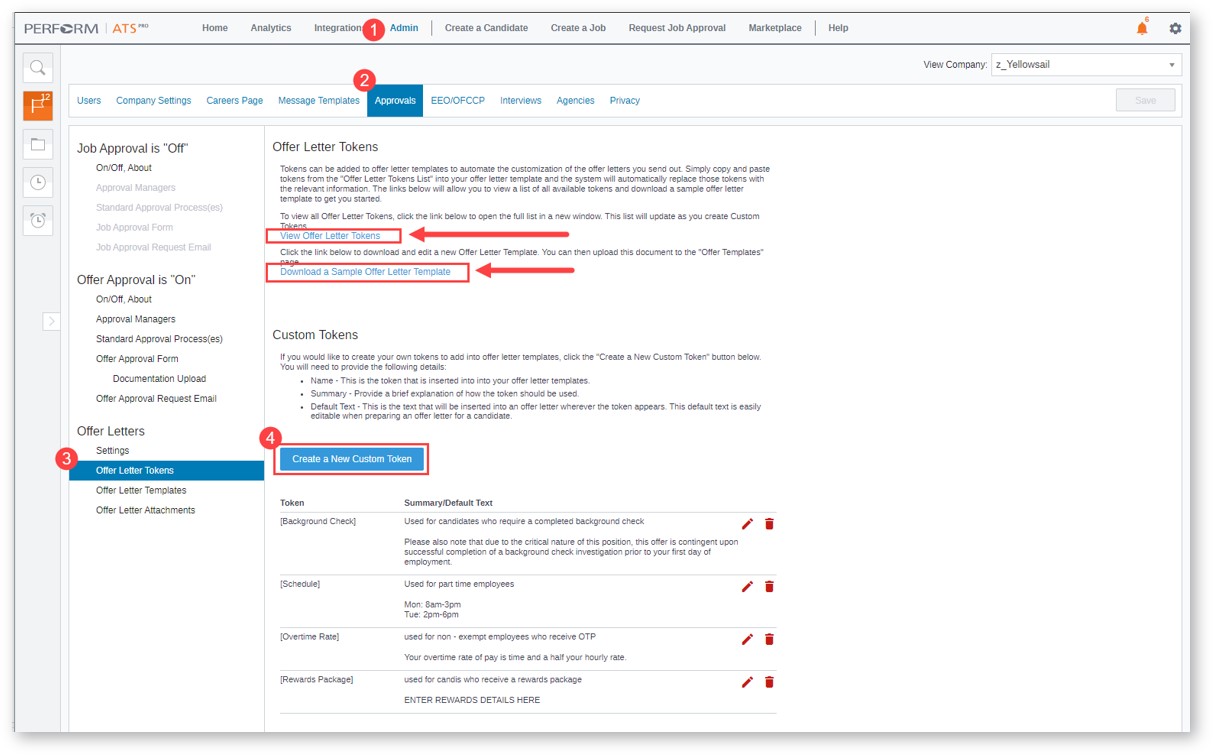
- In Recruiting, click Admin and then click Approvals.
- On the left in Offer Letters, click Offer Letter Tokens.
- On the right side, click View Offer Letter Tokens. This displays a continuously updated list of tokens available to you.
- In this section, you can also:
- Download a Sample Offer Letter Template
- Create a New Custom Token
Create Offer Letter Tokens
Benefits
Tokens can be added to offer letter templates to automate the customization of the offer letters you send out.
You can easily copy and paste tokens from the Offer Letter Tokens list into your offer letter template and the system will automatically replace those tokens with the relevant information.
We also provide a sample offer letter template with pre-built tokens in Paycor Recruiting that align to areas related to company, signer, candidate, job, and compensation.
Paycor Recruiting also allows administrators to create custom tokens for use on their offer letter templates.
Any tokens you add are added to the Offer Letter Token List at the bottom of the page that lists all tokens under Custom Tokens.
List of Default Offer Letter Tokens Available in Paycor Recruiting
You can also add custom offer letter tokens, and they must be surrounded by these { TOKEN }.
The system searches for any field with an exact match to the name in budget fields or the offer approval form.
If there isn't a corresponding field, the user generating the letter can fill in that blank field when they apply the template.
Offer Letter
| Name | Token | Summary | Default Text |
|---|---|---|---|
| Signed By - First Name | {SIGNER FIRST NAME} | Specify the first name of the company signer. | Claire |
| Signed By - Last Name | {SIGNER LAST NAME} | Specify the last name of the company signer. | Chiefexec |
| Signed By - Full Name | {SIGNER FULL NAME} | Specify the full name of the company signer. | Claire Chiefexec |
| Signer's Job Title | {SIGNER TITLE} | Specify the title of the company signer. | CEO and President |
| Send Date | {OFFER SEND DATE} | Specify the date the offer letter is sent to the candidate and company signer for signature. | 05/13/2024 |
| Expiration Date | {OFFER EXPIRATION DATE} | Specify the date the offer expires. | 05/16/2024 |
| Notes | {OFFER NOTES} | Specify a unique note for this offer letter. | Welcome aboard! |
Company
| Name | Token | Summary | Default Text |
|---|---|---|---|
| Name | {COMPANY NAME} | Specify the name of the company issuing the job offer. | PreviewCo |
| Street Address | {COMPANY STREET} | Specify the street address of the company. | 1234 Preview St. |
| City, State Zip | {COMPANY CITY STATE ZIP} | Specify the city, state, zip code of the company. | San Francisco, CA 94105 |
| Company Phone | {COMPANY PHONE} | Specify the company telephone number. | 000-000-0000 |
| Company Web Site | {COMPANY WEBSITE} | Specify the company website URL. | http://www.newtonsoftware.com |
Signer
| Name | Token | Summary | Default Text |
|---|---|---|---|
| Signature | {SIGNER SIGNATURE} | Company Signer should sign here. | |
| Signed Date | {SIGNER SIGNED DATE} | The date the offer letter was signed by the company signer. | 05/14/2024 |
Candidate
| Name | Token | Summary | Default Text |
|---|---|---|---|
| First Name | {CANDIDATE FIRST NAME} | Specify candidate's first name. | Jack |
| Preferred Name | {CANDIDATE PREFERRED NAME} | Specify candidate's preferred name, which may be different from the first name. | Jacko |
| Last Name | {CANDIDATE LAST NAME} | Specify candidate's last name. | Smith |
| Full Name | {CANDIDATE FULL NAME} | Specify candidate's full name. | Jack Smith |
| Street Address | {CANDIDATE STREET} | Specify candidate's street address. | 123 Broadway |
| City, State Zip | {CANDIDATE CITY STATE ZIP} | Specify candidate's city, state and zip code address. | San Francisco, CA 94105 |
| Candidate E-Mail | {CANDIDATE EMAIL} | Specify the candidate's e-mail address. | help@newtonsoftware.com |
| Candidate Mobile | {CANDIDATE MOBILE} | Specify the candidate's e-mail mobile phone number. | 000-000-0000 |
| Candidate Phone | {CANDIDATE PHONE} | Specify the candidate's e-mail phone number. | 000-000-0000 |
| Competency | {COMPETENCY} | Specify competencies that the candidate must demonstrate. | Data Entry |
| Current Base | {CURRENT BASE} | Specify the current base salary of the candidate. | $1,000 |
| Current Bonus | {CURRENT BONUS} | Specify the current bonus reported by the candidate. | 15% |
| Signature | {CANDIDATE SIGNATURE} | Candidate should sign here to agree with the job offer. | |
| Signed Date | {CANDIDATE SIGNED DATE} | The date the offer letter was signed by the candidate. | 05/15/2024 |
Job
| Name | Token | Summary | Default Text |
|---|---|---|---|
| Title | {JOB TITLE} | Specify the job title being offered to the candidate. | Head Sandwich Maker |
| ID | {JOB ID} | Specify the job ID of this opening. | 001 |
| Job Code | {JOB CODE} | Specify a categorization code used for this job. | A-1 |
| Job Type | {JOB TYPE} | Specify the job type. | Regular Staff |
| Shift | {JOB SHIFT} | Specify the shift that the job is scheduled for. | Day |
| Exempt Status | {FLSA STATUS} | Specify the FLSA status for the job. | Exempt |
| EEO Category | {JOB EEO CATEGORY} | Specify the job's EEO category. | Professionals |
| Department | {JOB DEPARTMENT} | Specify the job's department. | Customer Service |
| Agency Fee | {AGENCY FEE} | Specify whether there is an agency fee associated with the job. | No |
| Cost Center | {COST CENTER} | Specify the company cost center for the job. | 1774-43 |
| Budgeted | {BUDGETED} | Specify whether the job is included in the current department budget. | Yes |
| Agency Approval | {AGENCY APPROVAL} | Specify whether agency approval is required. | Yes |
| Budget Group | {JOB BUDGET GROUP} | Specify the job's budget group name. | ACCT-14534 |
| Estimated Fee | {ESTIMATED FEE} | Specify the estimated agency fee for the job. Usually you will add the token {PAY SYMBOL} in the template before this token. | 100 |
| Budget Title | {JOB BUDGET TITLE} | Specify the job's budget title. | Accounting/Accounts Payable |
| Job Board Budget | {JOB BOARD BUDGET} | Specify the Job Board Budget for this job. | $500 |
| Post to Board | {POST TO BOARD} | Specify whether the job is posted to job boards. | Yes |
| New Hire | {NEW HIRE} | Specify whether this is a new hire. | Yes |
| Job Location | {JOB CITY} | Specify the city where the job is located. | San Francisco |
| Location | {LOCATION} | Specify the location of this job. | NYC |
| City, State, Zip | {JOB CITY STATE ZIP} | Specify the city, state and postal code of the job location. | San Francisco, CA 94105 |
| Office Space | {OFFICE SPACE} | Specify the name of the office space the candidate will use. | HQ |
| Start Date | {JOB START DATE} | Specify the date the candidate is asked to start working for the company. | 05/27/2024 |
| Hiring Manager Name | {HIRING MANAGER NAME} | Specify the full name of the hiring manager for this job. | Nancy Needshires |
| Hiring Manager Title | {HIRING MANAGER TITLE} | Specify the title of the hiring manager for this job. | Division Manger |
| Reports To (Name) | {REPORTS TO NAME} | Specify the full name of the person to whom this candidate will report. | Nancy Needshires |
| Justification | {JUSTIFICATION} | Specify justification for the position. | Backfill. |
| Minimum Years Experience | {MINIMUM YEARS EXPERIENCE} | Specify a minimum number of years of experience the candidate must demonstrate. | 5 |
| Person Replaced | {PERSON REPLACED} | Specify the name of the person replaced by this candidate. | John Smith |
| Prior Domain Experience Required | {PRIOR DOMAIN EXPERIENCE REQUIRED} | Specify whether prior experience in the job domain is required. | 6 YEARS |
| Replacement Hire | {REPLACEMENT HIRE} | Specify whether this job is a replacement for a departing employee. | Yes |
| Special Notes | {SPECIAL NOTES} | Enter any special notes associated with the job. | Critical backfill |
| Termination Date | {TERMINATION DATE} | Specify the termination date of the departing employee. | 08/11/2024 |
| Reports to (Title) | {REPORTS TO TITLE} | Specify the title of the person to whom this candidate will report. | Division Manager |
Compensation
| Name | Token | Summary | Default Text |
|---|---|---|---|
| Hourly | {PAY HOURLY} | Specify the hourly pay rate that you want to offer the candidate for the job. | 37.50 |
| Weekly | {PAY WEEKLY} | Specify the weekly pay rate that you want to offer the candidate for the job. | 1442.31 |
| Bi-Weekly | {PAY BI-WEEKLY} | Specify the bi-weekly pay rate that you want to offer the candidate for the job. | 2884.62 |
| Semi-Monthly | {PAY SEMI-MONTHLY} | Specify the semi-monthly pay rate that you want to offer the candidate for the job | 3125.00 |
| Monthly | {PAY MONTHLY} | Specify the monthly pay rate that you want to offer the candidate for the job. | 6250.00 |
| Base Salary | {BASE SALARY} | Specify the base salary included in the job offer. | 12,000 |
| Annual | {PAY ANNUAL} | Specify the annual pay rate that you want to offer the candidate for the job. | 75000.00 |
| Salary Range | {SALARY RANGE} | Specify the salary range associated with the job. | 400 - 450 |
| Salary Frequency | {SALARY FREQUENCY} | Specify the frequency associated with the salary amount. | Monthly |
| Salary Grade | {SALARY GRADE} | Specify the company code for the salary grade. | A-1 |
| Currency | {PAY CURRENCY} | Specify a word for currency, such as for example "US Dollars" or "CAD". | dollars |
| Symbol | {PAY SYMBOL} | Specify a word/symbol for currency in this token, for example "$" etc. | $ |
| Bonus Percentage | {BONUS PERCENTAGE} | Specify the bonus percentage. | 5 |
| Bonus Amount | {BONUS AMOUNT} | Specify the bonus amount associated with the job. | 15% |
| Bonus Frequency | {BONUS FREQUENCY} | Specify the frequency of bonus payments. | Monthly |
| Bonus Range | {BONUS RANGE} | Specify the range of bonus amounts authorized for the job. | 5-10% |
| Commission Amount | {COMMISSION AMOUNT} | Specify the commission amount. | 5$ |
| Commission Frequency | {COMMISSION FREQUENCY} | Specify the frequency of commission payments. | Monthly |
| Communications Reimbursement | {COMM REIMBURSE} | Specify a communications reimbursement or allowance. | 100% |
| Phone Allowance | {PHONE ALLOWANCE} | Specify the allowance the candidate will receive for telephone expenses. | 25 per month |
| Travel Allowance | {TRAVEL ALLOWANCE} | Specify a travel allowance. | 100% |
| Car Allowance | {CAR ALLOWANCE} | Specify the allowance the candidate will receive for automotive expenses. | 300 per month |
| Stock Amount | {STOCK AMOUNT} | Specify an amount of stock shares. | 100 |
| Relocation | {RELOCATION} | Specify whether compensation for relocation in included. | No |
| Max Relocation Amount | {MAX RELOCATION AMOUNT} | Specify the maximum relocation amount authorized for the job. | $1,500 |
| Stock Date | {STOCK DATE} | Specify a grant date for stock shares. | 08/11/2024 |
| Stock Option Range | {STOCK OPTION RANGE} | Specify the range of stock options authorized for the job. | 12-15 |
| Amount of Sign-On | {AMOUNT OF SIGN-ON} | Specify the sign-on payment amount included in the job offer. | $1,250 |
| Time Off Accrual | {TIME OFF ACCRUAL} | Specify an accrual amount for paid time off per period. | 1 day / month |
| Time Off Amount | {TIME OFF AMOUNT} | Specify a total amount for paid time off being offered to the candidate. | 10 days |
Steps to Create an Offer Letter Token
- At the top, click Admin > Approvals, and the Approvals screen appears.

- On the left in Offer Letters, click Offer Letter Tokens. The Offer Letter Tokens screen appears.

- Click the Create a New Custom Token button. The Create a Custom Token popup appears.
- Complete the fields and click Save.
- Name: The name of the token inserted into your offer letter templates.
- Summary: Provide a brief explanation of how the token should be used.
-
Default Text:
- This is the text that will be inserted into an offer letter wherever the token appears.
- This default text is easily editable when preparing an offer letter for a candidate.

After you create a new token, it appears at the bottom of your Token list.
Steps to Add a Custom Token to an Offer Letter
After you create an offer letter token, you can add this custom token to an offer letter template and upload it to Paycor Recruiting for using at the offer letter stage.
- At the top, click Admin > Approvals, and the Approvals screen appears.
- On the left in Offer Letters, click Offer Letter Tokens. The Offer Letter Tokens screen appears.
- Select a template. In this screenshot, we're using the sample offer letter template and inserting the custom token, Background Checks:
- Where you want to insert a custom token, use these brackets [ and ] to surround the title of the custom token.
- In this example, it's [Background Checks].
Note: Pre-built tokens use these symbols { and }.

- When the template is uploaded, it is ready to use with an offer letter to a candidate.
- Following the offer approval and creating the offer letter, select your offer letter, including the custom offer letter token.

7. Any custom offer letter tokens you use appear at the bottom of the offer letter form page under Additional Details.

8. If the blue toggle  is on, this includes the custom offer token with the default text.
- When you click Preview in the offer letter document viewer, the custom offer token default text appears.
- In the screenshot below, both Background Check and Relocation custom offer tokens are turned on and appear on the offer.
- The red box indicates specifically the custom Background Check token:

9. If you toggle a custom token off and it turns grey  , it will no longer be included on that offer letter token.
- Example: Toggling off the Background Checks offer letter token but leaving on the Relocation custom offer letter token will remove all language of Background Checks but leave the Relocation text.

10. When looking at the offer letter preview, you will also see it removed.

11. When choosing which custom offer letter tokens you want to use in an offer letter, while the default text is provided, you can update it to any wording.

12. When you’ve made any changes to the default text for that offer token, you can view how those changes will appear in the same place where the token was placed in your offer letter template.

- When you finish editing any of the offer details, make sure all other areas of your offer letter form are completed and proceed with the next steps of sending the offer letter to the candidate.
Need Assistance?
If you have any questions on setting up custom offer letter tokens, contact Recruiting Support at recruitingsupport@paycor.com
Updated: December 5th, 2025 2584 views 0 likes
*This content is for educational purposes only, is not intended to provide specific legal advice, and should not be used as a substitute for the legal advice of a qualified attorney or other professional. The information may not reflect the most current legal developments, may be changed without notice and is not guaranteed to be complete, correct, or up-to-date.