This article is for administrators.
Overview
- Recruiting Echo lets your hiring managers say Yes or No to candidates by email.
- Recruiting Echo is turned on by default.
- As a Staffing or Administrator user, you can turn Echo on or off for each candidate when you send a Review Request or Feedback Request to a hiring manager.
- You can also turn on a Recruiting setting to always use Echo when sending Review Requests or Feedback Requests.
Turn on Echo for a Review Request
Note: When you send a Review Request, a blue hyperlink opens above the To field in the email template. Recruiting also uses Echo to record replies to Recruiting emails on a candidate's news feed. For more information, refer to What is the Echo All Emails Feature and How Do Echo Emails Flow Back into Recruiting?.
To turn on Echo for one candidate:
- Go to the candidate's record and start a Review Request.
- Select the toggle next to Echo On.
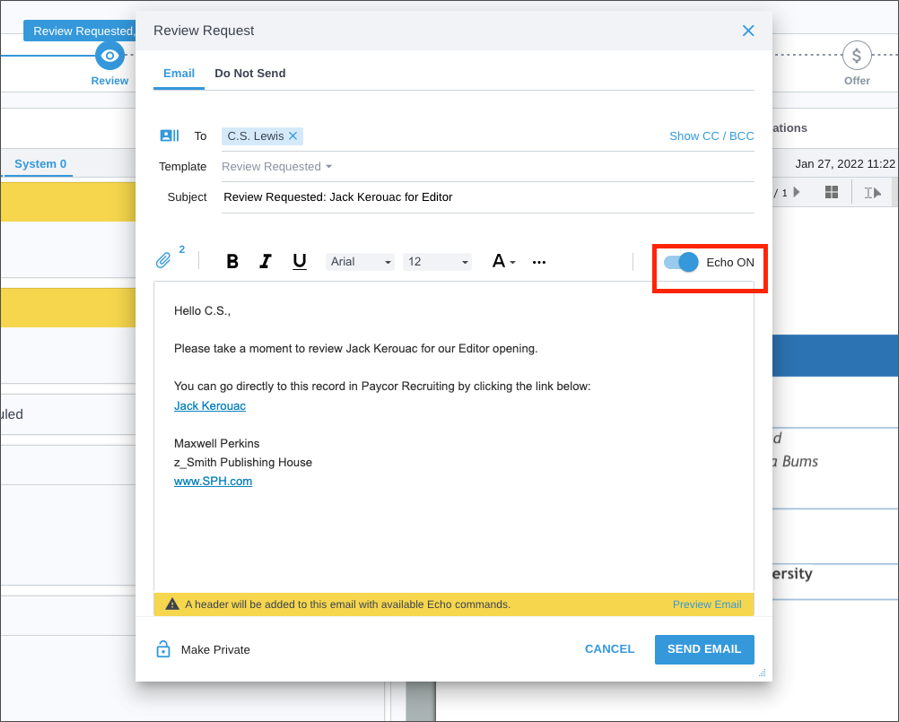
To turn on Echo by default for all Review Requests:
- Go to a candidate's record and start a Review Request.
- Select About Settings.
- In the Review Request Echo Default Settings window, select Echo is ON by default for Review Requests.
- Select Save.

Turn on Echo for a Feedback Request
Echo works the same way for feedback requests sent after a phone screen or interview. Set Recruiting to use Echo so your hiring managers can give feedback by email.
Note: For more information, refer to Automate feedback requests.
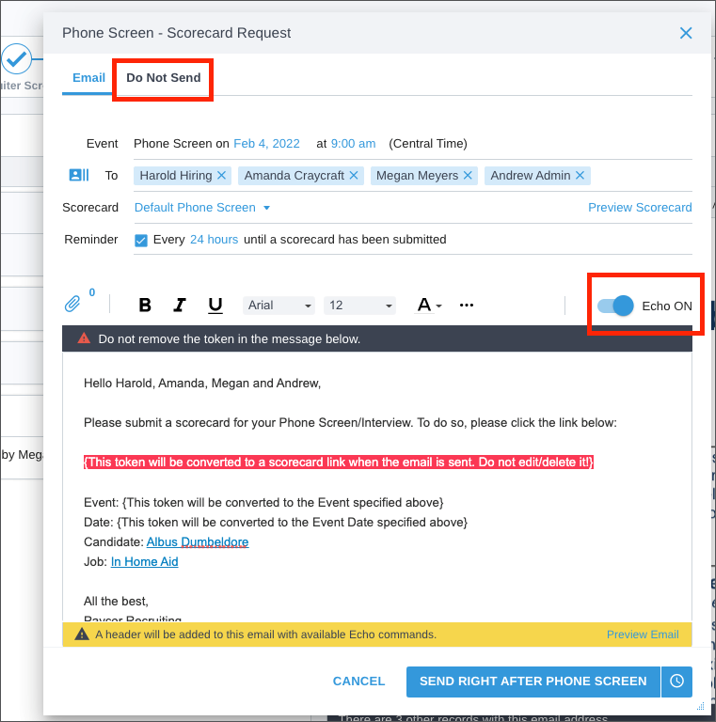
To turn on Echo by default for all Feedback Requests:
- Go to a candidate's record and start a Feedback Request after scheduling a phone screen or interview.
- Select About Settings.
- In the Feedback Request Echo Default Settings window, select Echo is ON by default for Feedback Requests.
- Select Save.
How hiring managers reply to Echo requests
When Hiring Managers receive an echo-enabled Review Request or Feedback Request, they can reply by email.
To schedule a phone screen or interview, hiring managers use one of these hashtag commands:
- #phonescreen
- #interview
For a complete list of hashtag commands, refer to Using Commands with Echo.
Here is an Echo email for a Review Request. When hiring managers reply, they can send feedback to Recruiting and ask for a phone screen or interview. Feedback Requests work the same way.

Updated: July 14th, 2026 6738 views 0 likes
*This content is for educational purposes only, is not intended to provide specific legal advice, and should not be used as a substitute for the legal advice of a qualified attorney or other professional. The information may not reflect the most current legal developments, may be changed without notice and is not guaranteed to be complete, correct, or up-to-date.