This article is for administrators.
Over time, a job post on Indeed moves lower in the list when applicants search for jobs. If you do not refresh the job yourself using the steps below, Indeed refreshes it automatically every 90 days.
When you need to refresh more often
Some companies need job posts refreshed more often than every 90 days. If you need this, you may choose to buy sponsored job posts.
Sponsored posts automatically stay higher in search results and help more people find the job.
You can also refresh a job manually (and free) using the steps below.
Manually refresh a job posting
Refreshing a job manually helps more people see it by moving the job higher in search results.
Follow the steps in this process:
Step 1: Clone the outdated job posting.
How Do I Post a New Job by Cloning an Existing Job in Recruiting?
This article is for administrators.
Sometimes, you may have jobs with the same title and job description, but only the location is different. To save time, you can clone the job so you don't have to manually re-enter and reformat the job.
Follow these steps to clone a job:
- In Recruiting, go to your Home Dashboard.
- Use the Job Search feature to find the job you want to clone.

- When the job appears, click the job title.
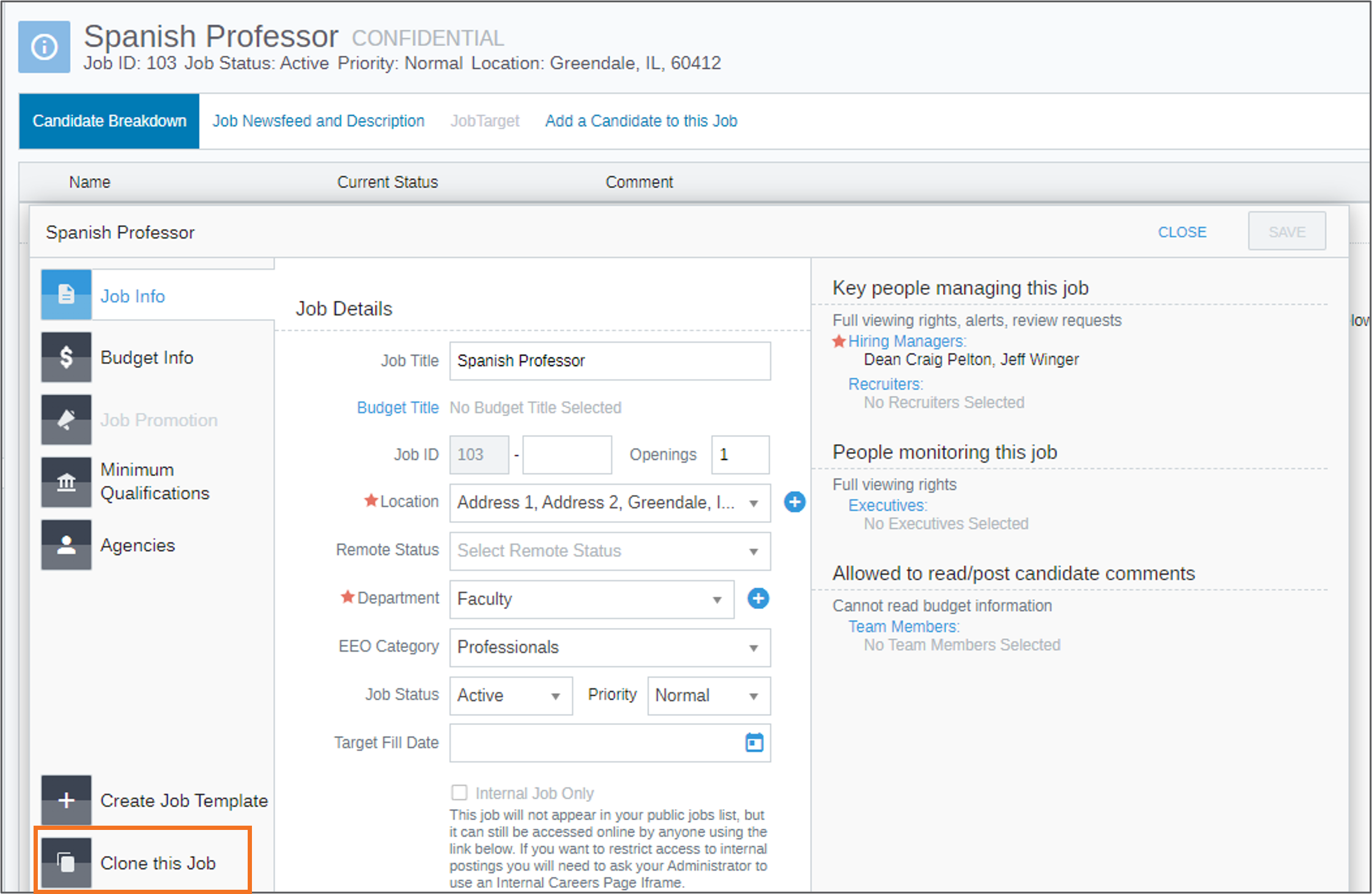
- Open the Job Info widget for the job you'd like to clone.
- In the lower left hand corner, click Clone This Job. The Add a Job screen appears with the same job information from the cloned job.
- Make the changes needed, and click Save.
Step 2: Use Bulk Actions to move candidates from the outdated job to the new job posting.
How Do I Use Bulk Actions to Copy and Paste, Cut and Paste, and Status Change Candidates in Recruiting?
This article is for administrators.
Overview
You can update many candidates at one time when they are in the same job. Use Bulk Actions to save time. You can do 3 actions with this feature:
- Copy Candidates to Another Job
- Cut and Paste Candidates to Another Job
- Change Status of Multiple Candidates
Copy candidates to another job
When you copy candidates, Recruiting adds them to a new job and keeps them in the current job. Nothing is removed. This creates a duplicate record for each candidate. Use this option when you want to keep the candidates in the current job.
- Go to People > Hiring > Applicant Tracking.
- Select the job title. The job record page opens on the Candidate Breakdown section.
- On the right, select Bulk Actions. The Bulk Actions window opens.
- Select Copy Candidates to Another Job, then select Next.

- Select candidates one at a time or select All to choose everyone in the list.
-
Note:
- By default, the list does not show candidates who are Inactive, Hired, or Internal Referrals.
- To include them, select Any Status and Any Type at the top.
-
Note:
- Select Next.

- Select the job where you want to copy the candidates. Use the search and filter functions to locate the exact job.
- Select Next.

- Review your selections and update the copy options if needed.
- There are several available options:
-
Comments
- Copy All Comments
- DO NOT Copy Comments
-
Attachments
- Copy All Attachments
- Only Copy Resume and Application
-
Candidate Type
- Choose another Candidate Type for the new job, or
- Leave as Do Not Modify Candidate Type.
-
Candidate Source
- Choose another Candidate Source for the new job, or
- Leave as Do Not Modify Candidate Source
-
Settings
- Check Save Settings as my Default for Copying Candidates, if needed.
-
Post Comments
- Add any comments needed in this open text field.
-
Make Private
- Select to make the Post Comments private to everyone except selected users.
-
Comments
- There are several available options:
- Select Save to finish.

Cut and paste candidates to another job
Cut and paste moves candidates from this job to a different job. The candidates and their data (including reports and analytics data) are removed from this job. Use this option only if you no longer need the candidates or their data in the current job.
- Go to People > Hiring > Applicant Tracking.
- Select the job title. The job record page opens on the Candidate Breakdown section.
- On the right, select Bulk Actions. The Bulk Actions window opens.
- Select Cut and Paste Candidates to Another Job.
- Select Next.
- Select candidates one at a time or select All to choose everyone in the list.
-
Note:
- By default, the list does not show candidates who are Inactive, Hired, or Internal Referrals.
- To include them, select Any Status and Any Type at the top.
-
Note:
- Select Next.
- Select the job where you want to paste the candidates. Use the search and filter functions to locate the exact job.
- Select Next.
- Review your selections and update the copy options if needed.
- There are a couple of available options:
-
Post Comments
- Add any comments needed in this open text field.
-
Make Private
- Select to make the Post Comments private to everyone except selected users.
-
Post Comments
- There are a couple of available options:
- Select Save to finish.

Change the status of multiple candidates
This feature lets you update the status of multiple candidates at the same time. Use it to save time and keep candidate records up to date.
- Go to People > Hiring > Applicant Tracking.
- Select the job title. The job record page opens on the Candidate Breakdown section.
- On the right, select Bulk Actions. The Bulk Actions window opens.
- Select Change Status of Multiple Candidates.
- Select Next.
- Select candidates one at a time or select All to choose everyone in the list.
-
Note:
- By default, the list does not show candidates who are Inactive, Hired, or Internal Referrals.
- To include them, select Any Status and Any Type at the top.
-
Note:
- Select Next.
- Select the new Status for the candidates.
- Add any comments needed in Post Comments.
- Select Make Private to make the Post Comments private to everyone except selected users.
- Select Save to finish.
-
Note: If you make several candidates inactive using Bulk Actions, Recruiting does not send Thank You Letters. Instead, it moves the letters to Pending Thank You Letters.

-
Note: If you make several candidates inactive using Bulk Actions, Recruiting does not send Thank You Letters. Instead, it moves the letters to Pending Thank You Letters.
Step 3: Close the outdated job posting.
How Do I Remove a Closed or Filled Position from Recruiting?
This article is for administrators.
Overview
To remove a job from your Recruiting Dashboard, it's because of one of these reasons:
- Closed: Used if no one is hired for a job.
- Filled: Used when there is a successful hire.
To remove a job from your Home Dashboard and notify candidates after it has been closed or filled, follow the steps in this article.
To remove the job only from your website, refer to Stop accepting resumes for an active job posting.
Step 1. Change the job status to closed or filled
- Go to People > Hiring > Applicant Tracking.
- Go to the job you filled or decided to close, select the More info icon.

- On the Job Info tab, select the Job Status field.
- Select Closed or Filled.
- Select Save.
- Go to Step 2.
Step 2. Bulk inactivate candidates for jobs with a closed or filled status
- Go to People > Hiring > Applicant Tracking.
- Go to a Closed or Filled job.
- When you change the status of a job to Closed or Filled, a banner displays at the top of the job details window.
- Select clicking here. The screen changes to the Select the candidates you would like to change to “Filled” or “Closed” (depending on your selection).

- Select clicking here. The screen changes to the Select the candidates you would like to change to “Filled” or “Closed” (depending on your selection).
- Mark the checkbox next to specific candidates, or choose Select All on this Page for all candidates. The candidates now display in the Pending Thank You section of the Home Dashboard.

- Go to Step 3.
Step 3. Send bulk thank you letters
- Go to People > Hiring > Applicant Tracking.
- Select Pending Thank You Letters (XX of XX). The candidates you inactivated are listed.
- Mark the checkboxes next to the candidates to send a thank you letter.
- Select Send.

Close and Fill a Position Expert Session video
Updated: March 12th, 2026 10606 views 2 likes
*This content is for educational purposes only, is not intended to provide specific legal advice, and should not be used as a substitute for the legal advice of a qualified attorney or other professional. The information may not reflect the most current legal developments, may be changed without notice and is not guaranteed to be complete, correct, or up-to-date.